

How To Create Fbx File
Introduction
When we export a 3D model in FBX format in Blender, inside the file is not only the information of the 3D mesh, but many more elements are added, for example the UV map, materials and even the colors of the materials, these elements can then be recovered in other software, for example Unity, however the textures are not automatically included in the FBX file, in this article we will see how to pack the textures applied to a model within the FBX file in Blender.
Video about PACKING textures inside the fbx file 👉
Summary steps to export model with textures in Blender to Unity
1. Select the models to be exported, making sure that textured materials are applied to them.
2. Go to File > Export > FBX and check the "Select Objects" checkbox to export only the selected objects.
3. Change the "Path Mode" parameter to "Copy" and click on the "Embed Textures" button to the right of the "Path Mode" drop-down menu.
4. Give it a name, export and then transfer the file to Unity.
5. Select the model and go to the materials tab in the inspector. Click on the "Extract Textures" option and choose the destination folder. This will extract the textures from the FBX file and in my case they are applied automatically.
Detailed process for exporting model with textures from Blender to Unity
Now let's see in detail the sequence of steps above, it consists of two parts, one part that is done in Blender and another one that is done in Unity.
Blender
You have a model that has textures applied to it as shown in figure 1.
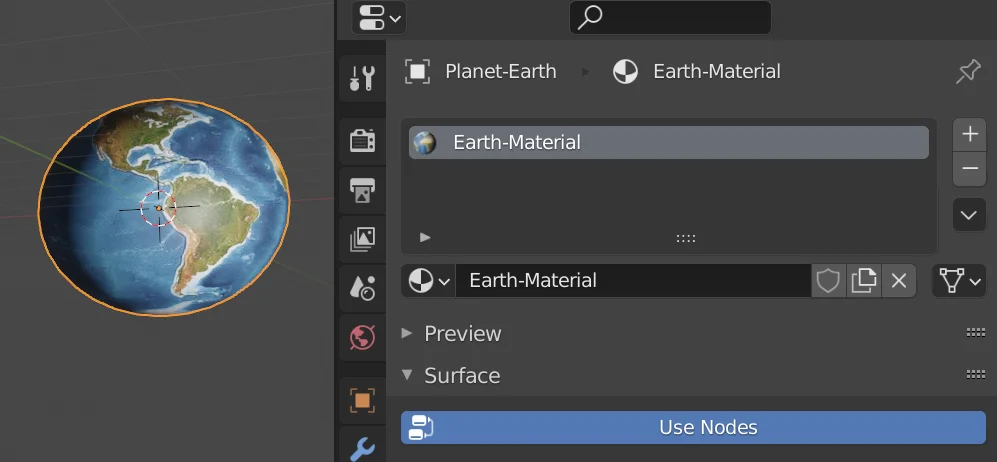
We go to the FIle > Export tab and choose the FBX option, the export window will open, there we can choose the destination folder and the file name, in particular I always check the "Selected Objects" checkbox so that only the models I have selected are exported, otherwise unwanted objects, such as lights and cameras, would be exported.
In order for the textures to be included in the file it is necessary to do two things, the first is to change the "Path Mode" parameter to "Copy", as shown in figure 4. The second thing is to activate the button on the right of the Path Mode dropdown menu (as shown in figure 5), that will embed the textures in the FBX file.
Unity
Once the model is exported with the previous method, we take that FBX file to Unity, we should see something similar to what we see in figure 6. Inside the model we only see the meshes and materials that are included, notice that the textures are still not there.
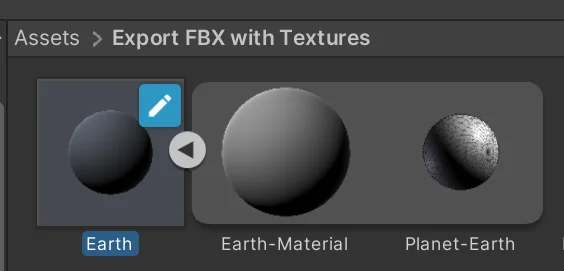
With the model selected we go to the Inspector window and enter the "Materials" tab, figure 7. Inside Materials we have a button to extract the textures, we press it and choose the destination folder in the pop-up window.
This extracts the textures that come from within the model and even applies them to the material.

How To Create Fbx File
Source: https://gamedevtraum.com/en/blender-tutorials-and-curiosities/how-to-export-a-3d-model-in-fbx-format-with-textures-in-blender/
Posted by: alcarazliplet.blogspot.com
0 Response to "How To Create Fbx File"
Post a Comment